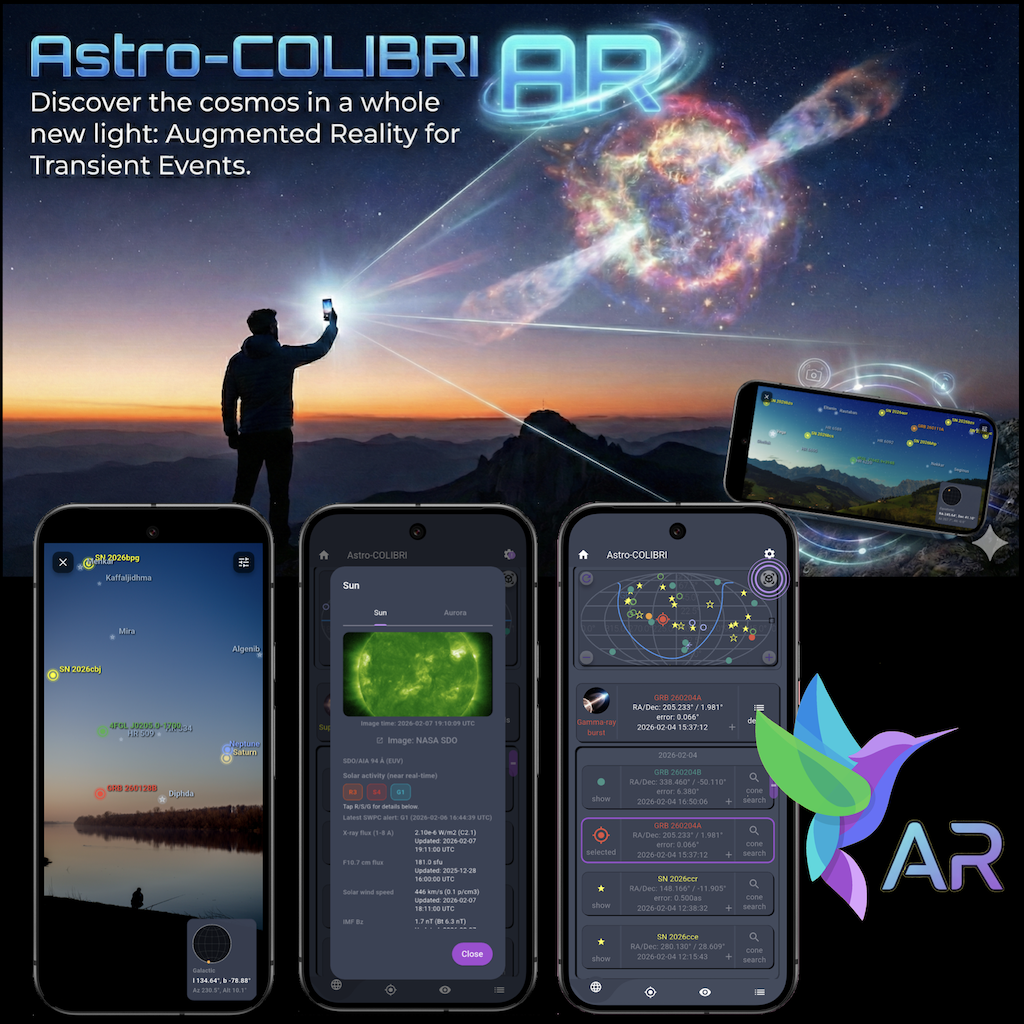
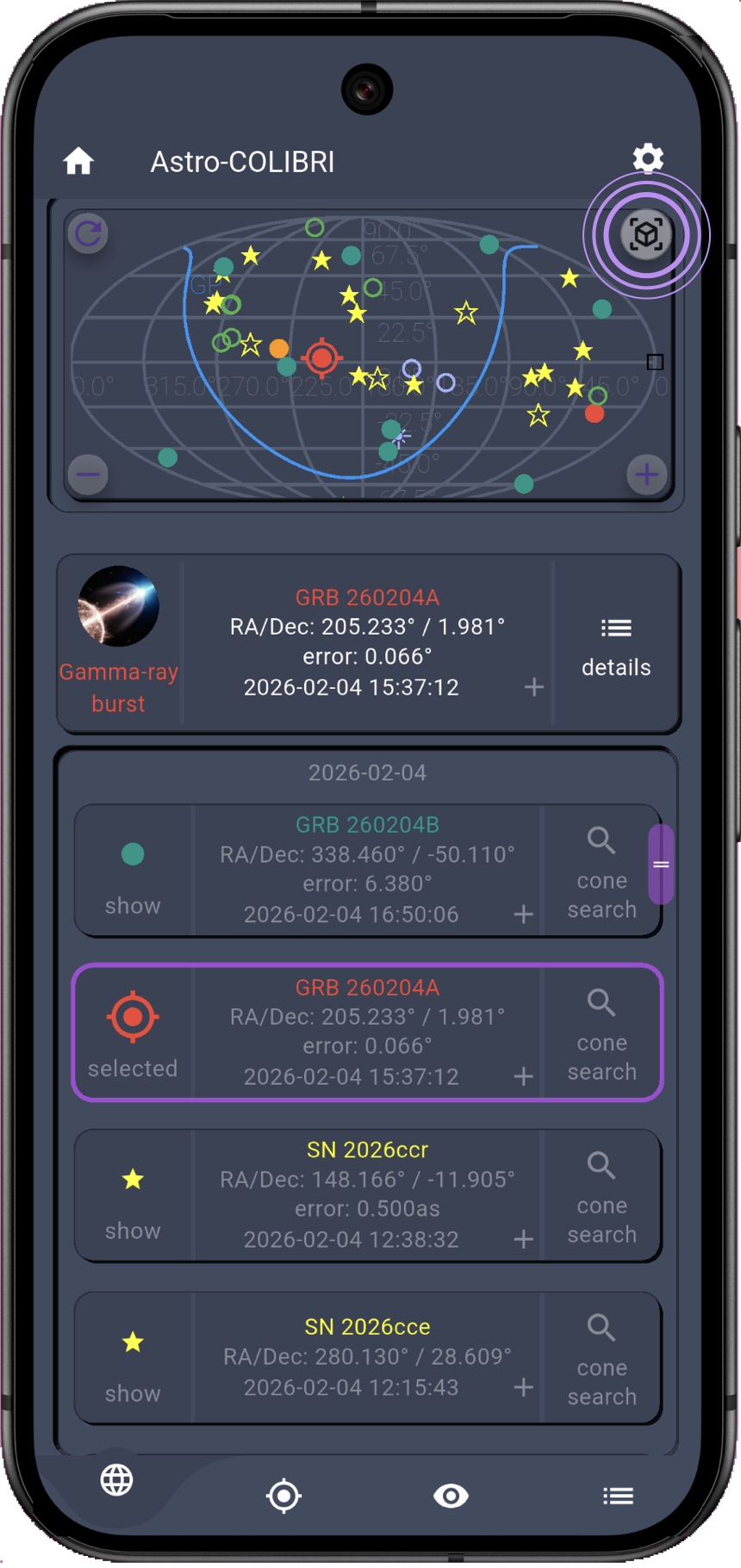
AR mode is available with an active Astro-COLIBRI subscription. Beyond AR access itself, this support contributes directly to the day-to-day operation of the platform: ingestion and processing of multi-messenger alerts, data serving infrastructure, maintenance of app and API features, and continued reliability improvements for the whole community.
You can subscribe directly in the iOS or Android app:
Sign in to Astro-COLIBRI, then open AR from the main map, via (Open in AR) in the event details and event search. A new menu item is also available directly in the Astro-COLIBRI account area.
If no active AR entitlement is found, the in-app subscription paywall opens automatically.
Select a plan and confirm the purchase with your Apple App Store or Google Play account.
Subscription handling is managed by the app stores: billing, auto-renewal, taxes, receipts, and payment methods are controlled by Apple/Google under their terms. You can cancel at any time in your App Store/Google Play subscription settings (or via the subscription management entry in the Astro-COLIBRI account area). Canceling disables future renewals; access remains active until the end of the already-paid period. Subscriptions renew automatically unless canceled at least 24 hours before the current period ends.
Alternatively, you can subscribe directly through our web interface. The subscription price is identical regardless of the platform you choose. However, subscribing through the web is the best way to support the Astro-COLIBRI platform: app store purchases are subject to Apple and Google platform fees, whereas web payments reach us with significantly lower processing costs, meaning a larger share of your contribution goes directly toward running and improving the platform. Web-based subscriptions are managed through your Astro-COLIBRI account and can be accessed, updated, or canceled from the subscription management page on any device.
Subscription waivers for educational use are available upon request, in line with our commitments to public engagement and capacity building in underserved communities. For details see our engagement page and feel free to reach out to us via email if you have questions about eligibility or the application process.
Overview
The Augmented Reality (AR) mode overlays the current sky view directly on the camera feed. It combines Astro-COLIBRI transients with
bright stars, planets, the Sun, and the Moon to help with real-time sky navigation. The size and brightness of the star markers reflect object magnitude to make bright objects stand out, while fainter stars remain visible but subdued. The view adapts to portrait and landscape orientations. In addition to the sensor-driven camera overlay, AR mode includes a manual pan/zoom mode for easy touch-based navigation. A configurable compass, optional constellation overlays, and expanded star detail panels provide additional orientation and object context directly in AR.
Screenshots
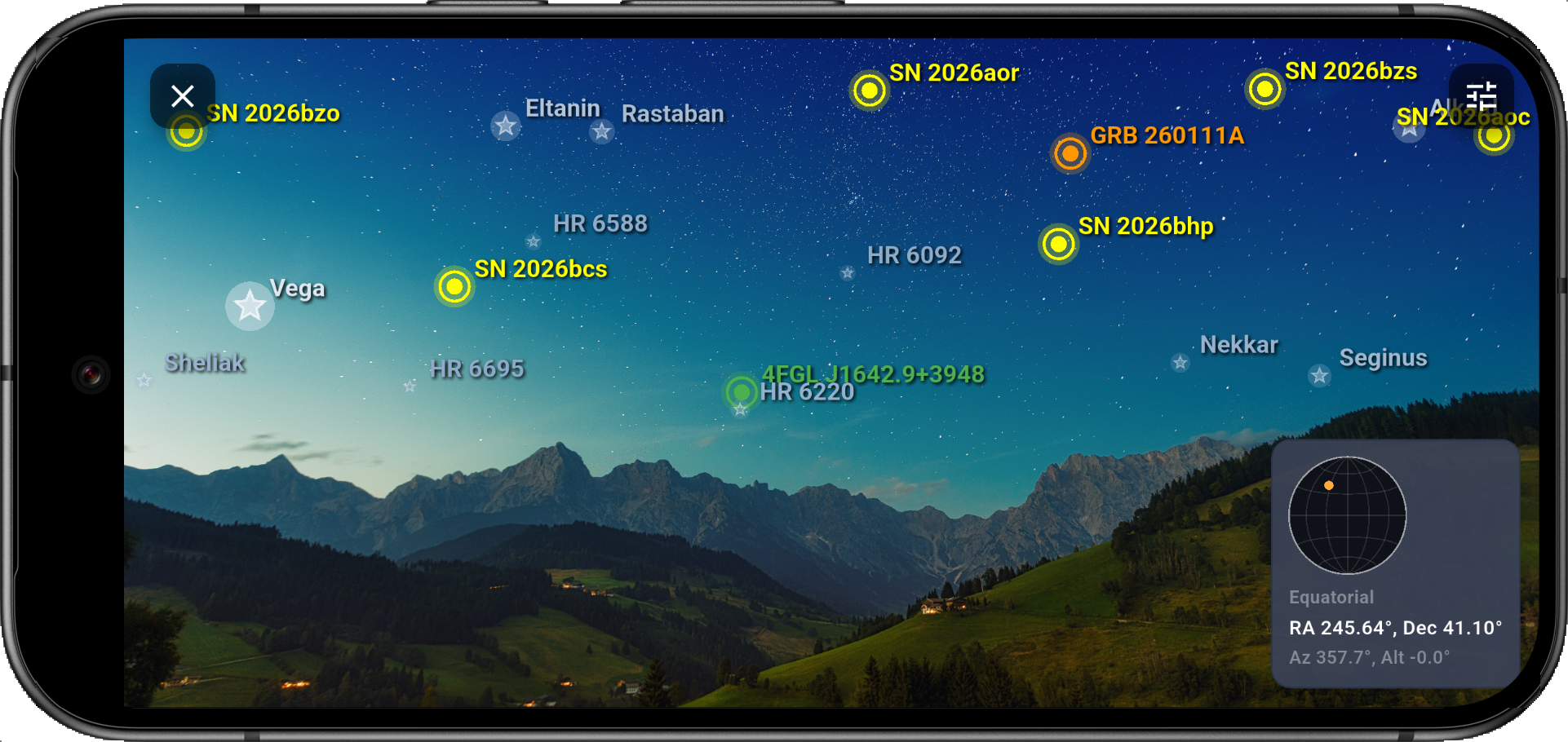
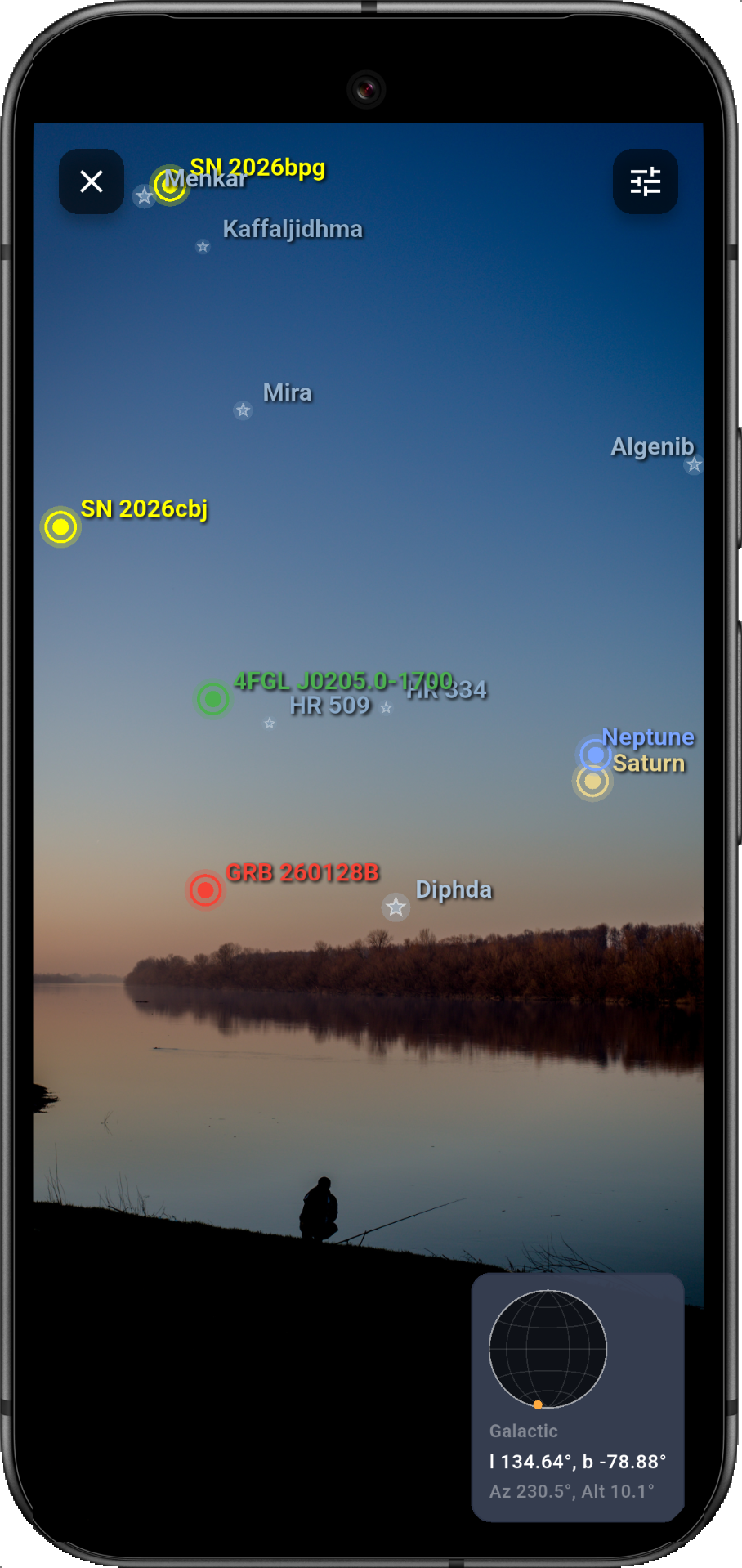
In AR mode, tap the camera icon to trigger a screenshot of the current view. The image is saved to your device's photo gallery and includes the relevant AR overlay as seen on screen, including any locked targets, compass, and coordinate indicators. This allows you to capture and share your AR experience with others or keep a record of interesting sky views. The screenshots are stored in a dedicated "Astro-COLIBRI" album for easy access and organization. A screen is opening that allows you to share the image directly from the app, or you can access it later from your photo gallery to share it through your preferred channels.
AR view in landscape mode.AR view in portrait mode.
How to start AR mode
Main map: tap the AR button to open the live camera overlay.
Transient details: use the "Open in AR" button in the event detail panel to load and lock the target.
Event Search (mobile): use the "Open in AR" button next to the search result to open AR locked to the event coordinates.
Open in AR button in the event details.
When opened from an event, the AR view locks to the event RA/Dec and shows a guidance arrow that points to the target if you move the phone away.
Main map button to open AR mode.
Transient filtering and Event Search
AR mode uses the same side panel logic as the main interface for selecting transients. This means the filtering and search behavior is identical between standard view and AR, so your selected criteria are applied consistently.
Open the side panel from AR via AR options → Filters & Search.
All standard transient filters (source classes, observatories, timing, and user filter settings) are applied to AR exactly as in the main app.
Event Search works the same way as in the main app: selecting a result and opening it in AR centers/locks the target for immediate guidance.
AR options
Filters & Search: opens the same side panel used in the main app to filter transients and run Event Search.
Manual pan & zoom mode: disables camera/motion sensors and uses a static background for touch-only navigation.
Full-sky view: shows all enabled targets below the horizon.
Display options: invert vertical axis, show horizon line (with Earth shading), and enable the coordinates indicator map.
Coordinates indicator: when visible, tap it to switch between Equatorial and Galactic coordinates. The Galactic Plane is indicated by a blue line.
Compass: show/hide the AR compass with heading, cardinal directions, and optional coordinate context.
Night vision: switches AR to a red-toned theme to preserve dark adaptation.
Observer location source: choose between device location and selected observatory location.
Sun, Moon & planets: toggle these bodies individually for cleaner or richer overlays.
Bright stars: enable/disable, optionally show star names, set the magnitude cutoff with the slider (higher values include fainter stars), and toggle constellation lines and labels.
Manual pan & zoom
Activate it from AR options → Manual pan & zoom mode or by tapping in the center of the Compass.
When enabled, phone movement is ignored and the live camera preview is replaced by a static AR background image.
Touch controls on the main AR screen: one-finger drag pans the sky directly, and two-finger pinch zooms in/out.
A zoom badge lets you cycle through predefined zoom levels, extending down to 0.2x for almost full-sky overview.
An optional lower-right trackpad is available to pan the sky; at release, its knob springs back to center and movement stops. You can also rotate the view by dragging the outer edge of the compass.
Compass
The AR compass can be enabled from AR options → Show compass. It displays the current heading in degrees and cardinal/intercardinal directions (N, NE, E, ...), with direction markers rendered along the horizon arc.
When the coordinates indicator is enabled, the compass also shows zenith angle and the current pointing coordinates (RA/Dec or Galactic l/b).
Tapping the center of the compass switches between the live camera mode and manual pan/zoom mode.
In manual mode, dragging on the outer compass arc rotates azimuth for fine left/right sky control.
Star catalog
The AR bright-star layer is built on the Yale Bright Star Catalog (BSC5) and is augmented with official IAU WGSN
star names and extended cross-catalog metadata. Marker size and brightness are tied to visual magnitude for intuitive naked-eye orientation.
Tap a bright star to open an information panel. A compact standard view is available for quick navigation, while the science view expands to grouped sections with detailed information:
Systems and astrophysics: multiplicity (WDS/SB9), variability fields, Gaia/spectroscopic parameters, and exoplanet-host metadata.
External resources: direct links to SIMBAD, Gaia DR3 (VizieR), WDS, AAVSO VSX, NASA Exoplanet Archive, and SB9 where available.
Names and IDs: HR/HIP/Bayer and WGSN identifiers, Gaia source IDs, SIMBAD naming, WDS IDs, and IAU adoption context.
Coordinates and brightness: constellation, visual magnitude, RA/Dec, current Az/Alt, parallax, and distance.
Cultural origin: Origin and historical context of the star's name.
Constellations
Optional constellation overlays can be enabled from AR options → Bright stars → Show constellation lines. The overlay draws major constellation outlines and labels directly in the AR field based on currently projected bright-star anchor points.
To keep the view readable, only prominent constellations are shown at a time (selected from visible bright-star groups), and line/label placement updates continuously as the phone orientation changes.
Selecting and locking targets
Tap any marker to highlight it and open its info panel. Tapping the same marker again unlocks it without opening the
panel. When a target is locked, a fixed ring and an on-screen arrow guide you back to it, and the coordinates map
(if enabled) shows its position in the same color as the marker.
For transient events, the panel opens the full source-information view directly inside AR. It includes the key event metadata (name/type/classification, observatory/instrument, detection time, coordinates and uncertainty, and additional science fields when available). For optical transients, the panel also provides the photometric summary and access to the lightcurve products. Host-galaxy context is available via the WISE-based host information tools. From the same transient panel, you can launch a Cone search (science mode, or Zoom in standard mode) and use Open to switch from AR back to the main interface with the selected event loaded.
The filtering sidebar opens in the same way as in the main app view, simply by dragging in out from the left edge of the screen. Tapping anywhere outside the sidebar closes it and applies the selected filter criteria.
Real-time Sun status and aurora forecasts
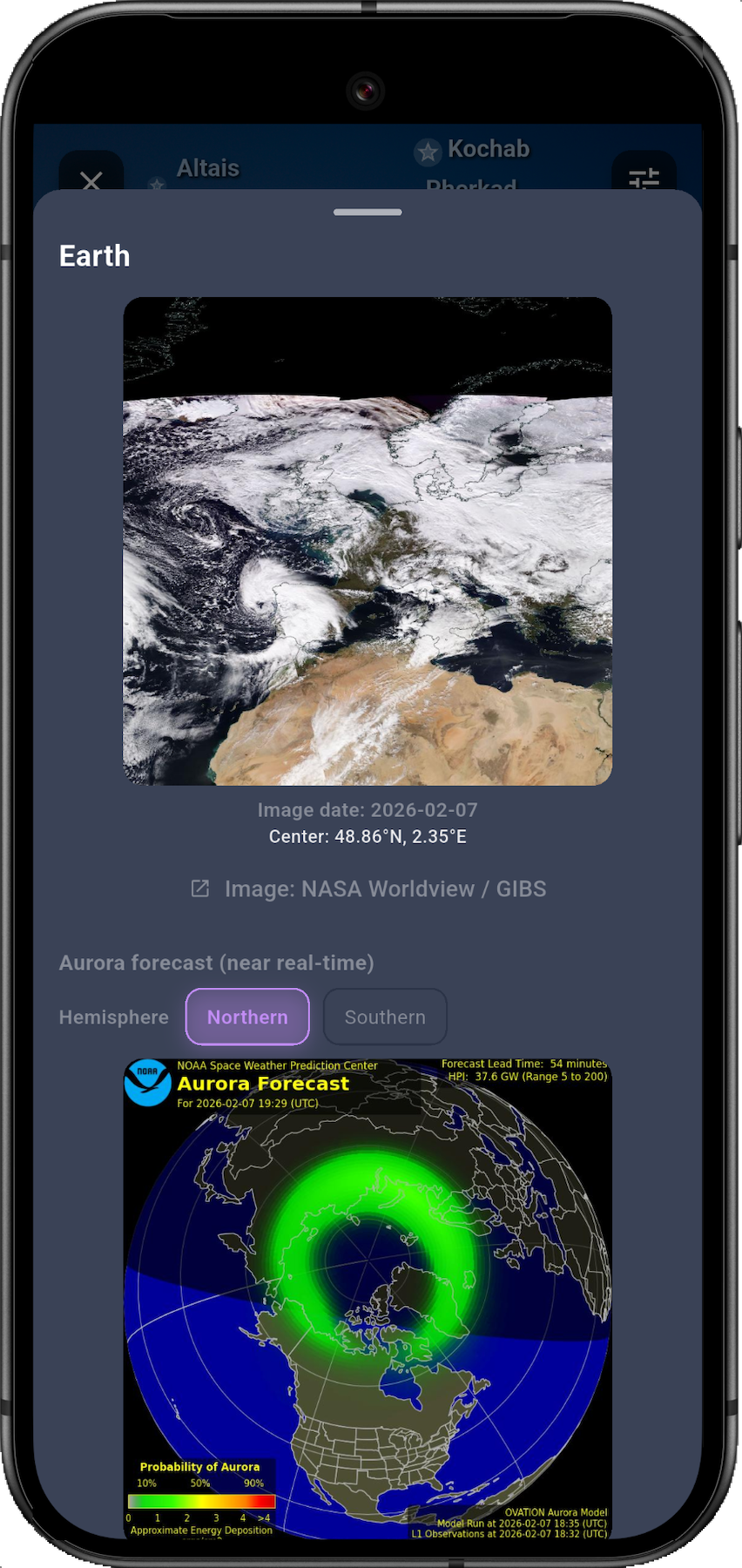
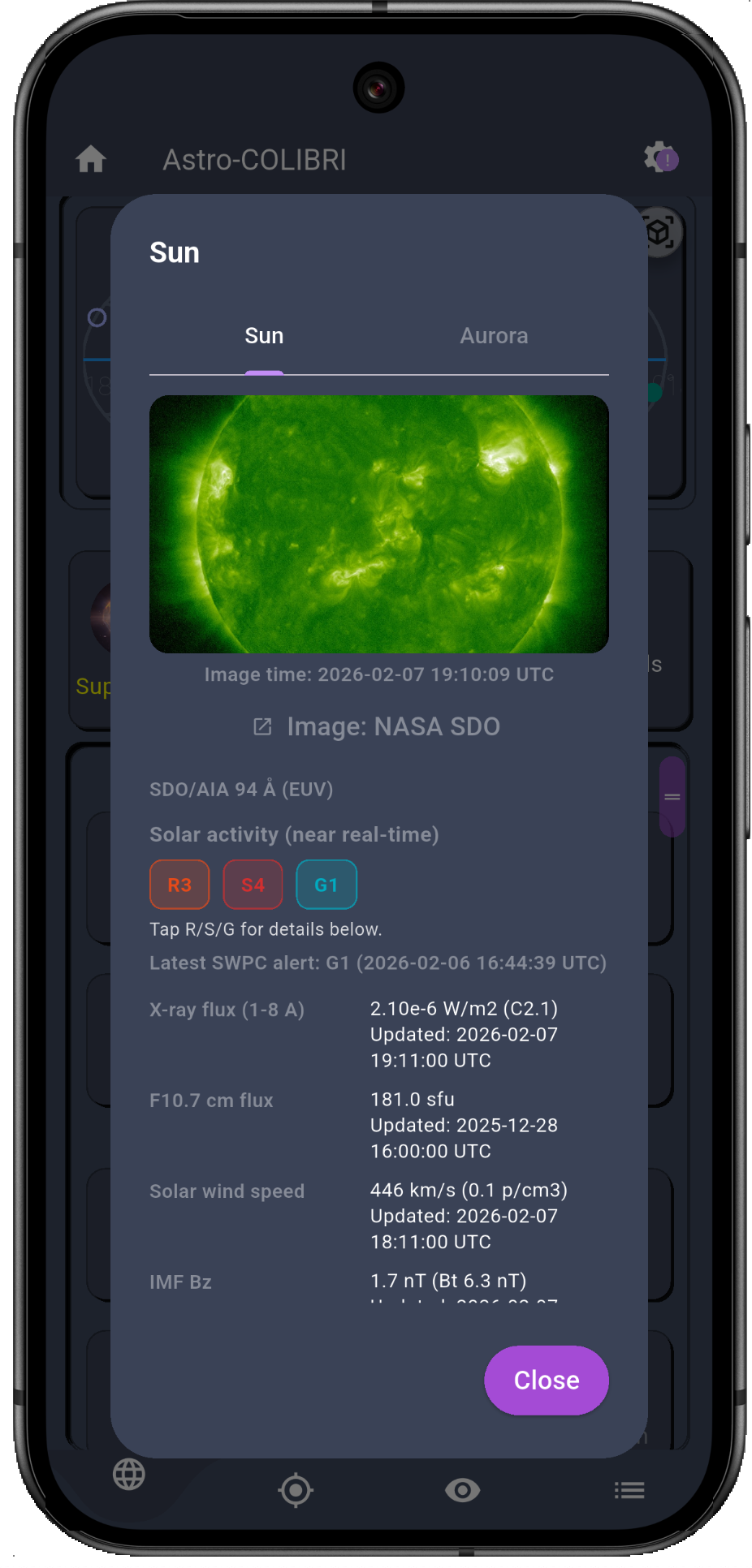
In AR mode, tap the Sun marker to access near real-time solar imagery and summaries of the solar activity. With the horizon
line enabled, tapping below the horizon opens the Earth panel, which includes aurora forecasts (north/south
hemisphere selection) and the latest Earth imagery. On the main map, select the Sun to show a window with the near real-time solar imagery and switch to the Aurora tab to view the same forecasts. Solar imagery supports multiple SUVI bands (with 171 as default), cycle through them seamlessly to get the full picture. In both views, AR and standard, the moon panel shows the current lunar phase name, waxing/waning trend, and illumination percentage (to 0.1%). The panel also includes an actual hourly Moon rendering. Additional observer-context and cycle information is available, including current altitude/azimuth, whether the Moon is above the horizon, next moonrise and moonset times, and next full-moon/new-moon timing.
Earth panel and aurora forecast in AR.Sun panel with activity summary in standard mode.
Data sources
Bright stars and names: Yale Bright Star Catalog (BSC5), IAU WGSN naming, and SIMBAD cross-identifications.
Extended star metadata (when available): Gaia DR2/DR3, WDS/SB9 multiplicity catalogs, AAVSO VSX variability data, and NASA Exoplanet Archive host/planet records.
Sun imagery: NOAA SUVI multi-band products (94, 131, 171, 195, 284, 304 Å)
Sun activity summary: NOAA SWPC near real-time data feeds (X-ray flux, Kp index, F10.7 flux, solar wind, and alerts).
Aurora forecast: NOAA SWPC Ovation model images for northern and southern hemispheres.
Moon position and phase: Astro-COLIBRI celestial position API (Astropy with JPL DE432s ephemeris).
Moon imagery: NASA SVS hourly rendering
Planet positions: Astro-COLIBRI celestial position API (Astropy with JPL DE432s ephemeris).
Planet images: NASA/JPL/USGS and NASA Photojournal assets (credits shown in the planet panels).